Practice Exercises
Now that you have learned about variables, let us see if you can create Scratch projects based on them.
What's your name?
Let's use this Scratch project created for this lesson as an example.
Let's create this Scratch project using variables. Please note that when 'X' is used in these instructions, assume that it is replacing a part of a block that can be changed. Also, when 'V' is used, note that it'll stand in for a variable's name.
We'll start by creating a new Scratch project.
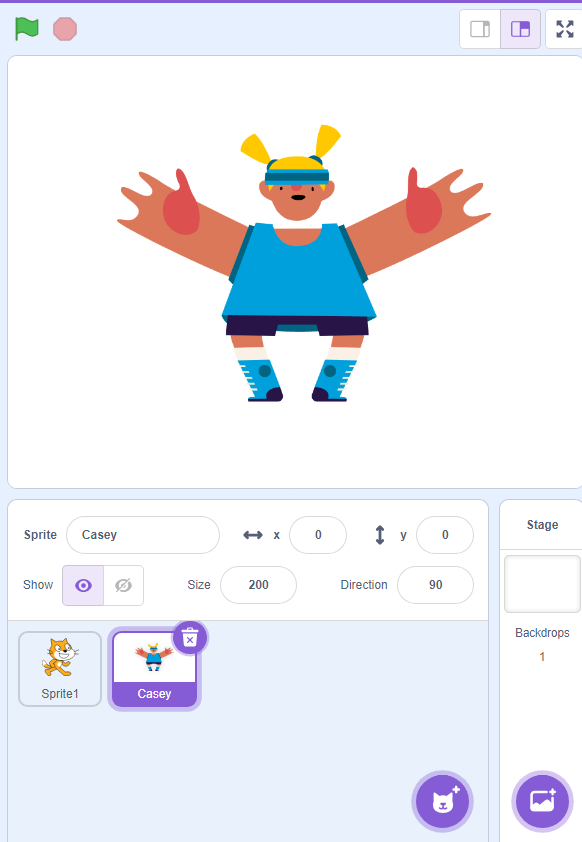 While we will use the 'Casey' sprite for demonstration, you can use any sprite.
Let's set the sprite's size to 200%.
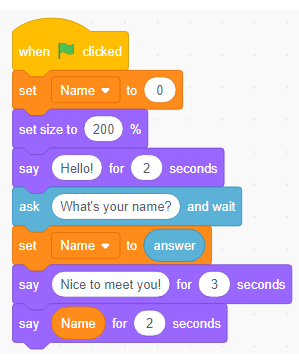 To make the sprite talk, add the 'say X for X seconds' block and the 'ask X and wait' block. The latter block is under Sensing. You can make the sprite say anything, but here we will have the sprite ask for your name.
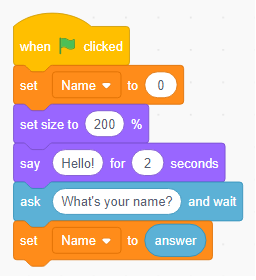 Now we need the program to remember our answer to the sprite's question. Here, we will use variables to store that information. We'll use the 'set V to X' block for this.
- When the green flag is clicked, it should reset the value.
- When you answer the sprite's question, the value of the variable should be set to your answer.
- If you don't want the variable to be visible onscreen, then add the 'hide variable V' block.
This is the program in its most basic form. We can create variations by adding extra code.
What a long name
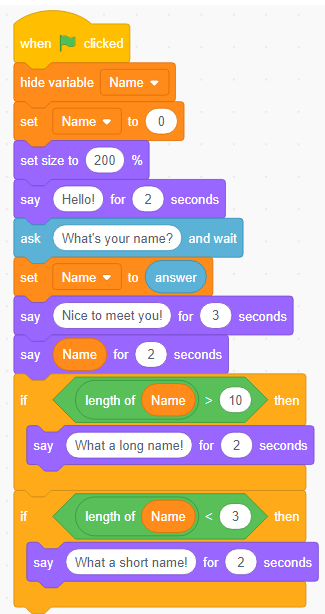
By adding 'if-then' blocks to our code, and by using operators such as <, >, and 'length of X', the program can check if the answer is < or > than a given number. Here, it'll comment if the given name seems long or short.
Hi again!
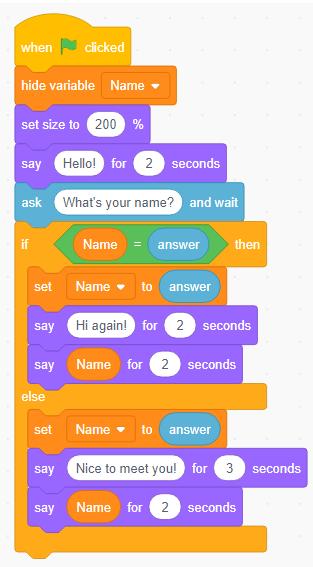
This time, our code will check if your answer matches the answer you already gave before. Here, the variable will not reset; this is so that the program can check your previous answer. If it finds that your current answer is the same as your previous answer, it'll trigger alternative code.
Here are the alternate versions that were discussed.